Build practice from a real focus
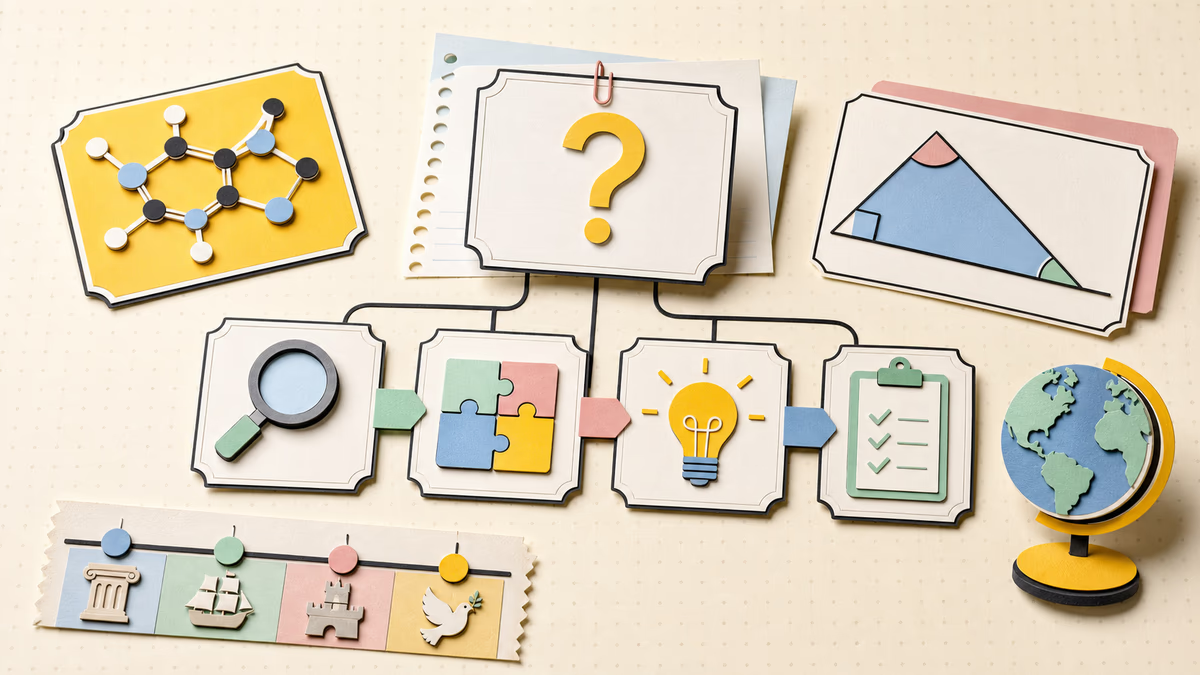
Use a focused topic, notes, a passage, or selectable PDF text.
Turn a topic, pasted notes, or selectable PDF text into a quiz you can take on the page. Choose the number of questions, difficulty, formats, and language, then review scores and explanations.
Add your topic, source, or lesson details, choose the settings, then generate a result you can use, copy, or download.
Use a focused topic, notes, a passage, or selectable PDF text.
Choose the count, difficulty, language, and question formats.
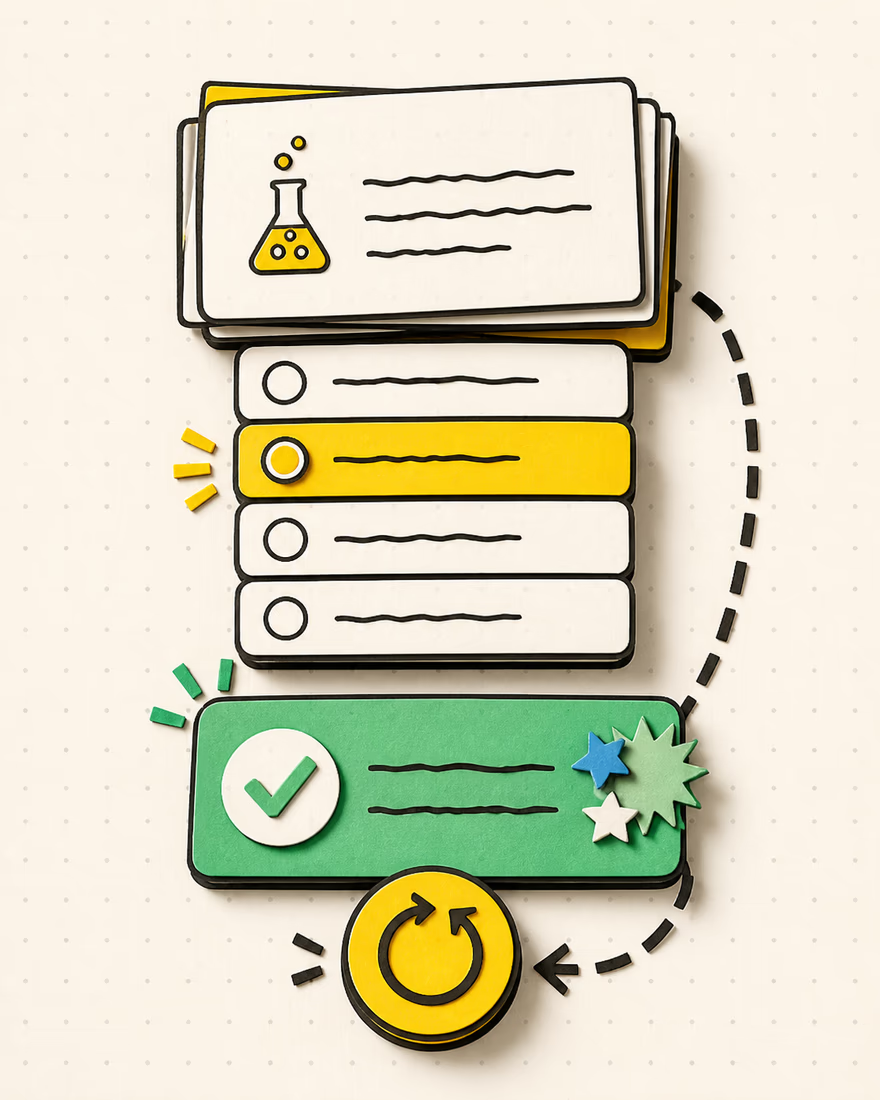
See objective scores and reference answers after submission.
Retake an existing quiz locally without another generation.
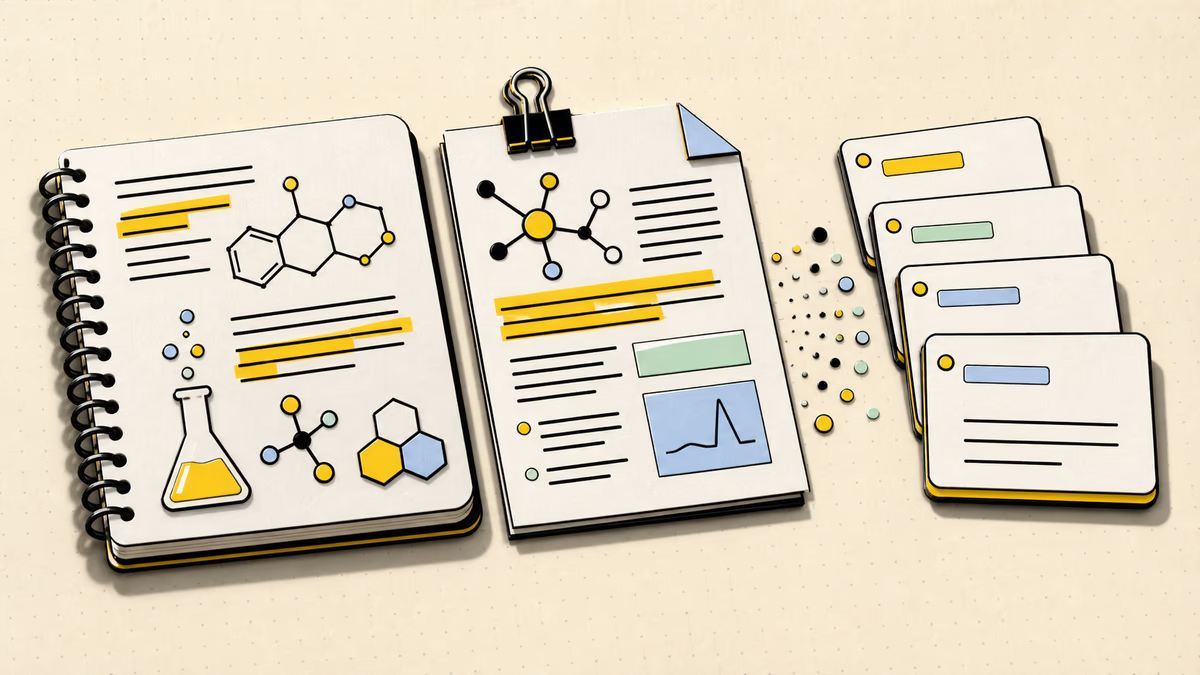
Enter a topic, paste notes or a passage, or extract selectable text from a PDF in your browser. A focused source helps the result stay closer to the concepts you intend to review.
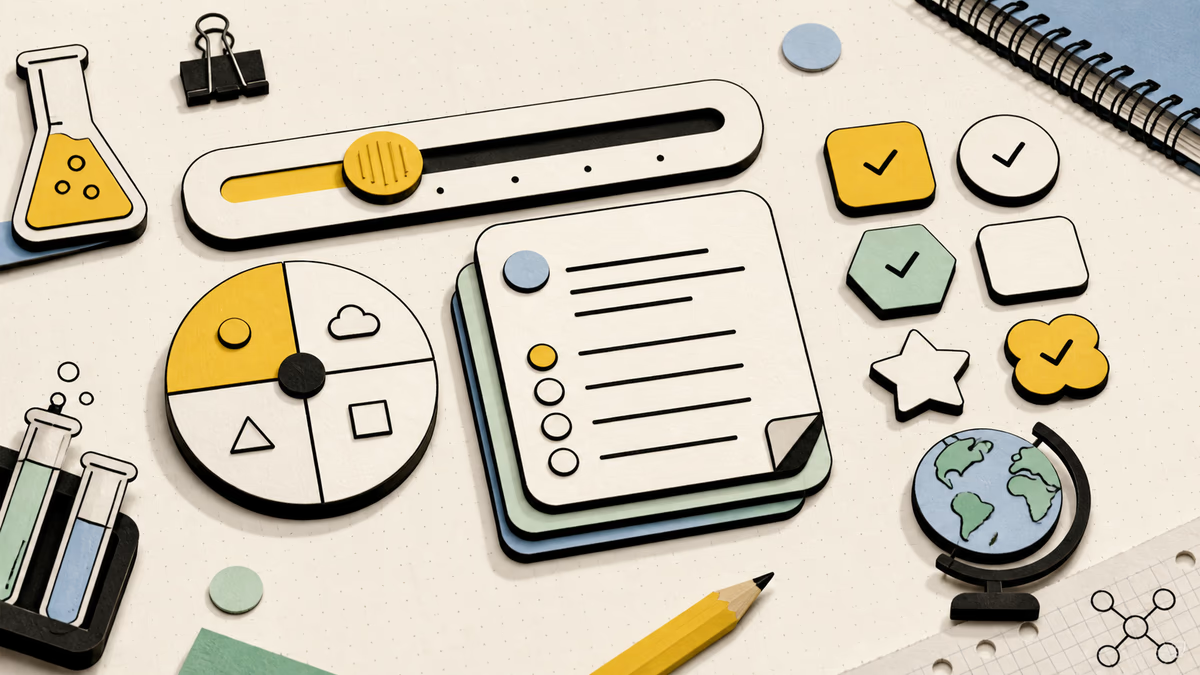
Choose 3 to 30 questions, one or more supported formats, the difficulty, and the output language. Combine formats when the session should move from recognition to written recall.
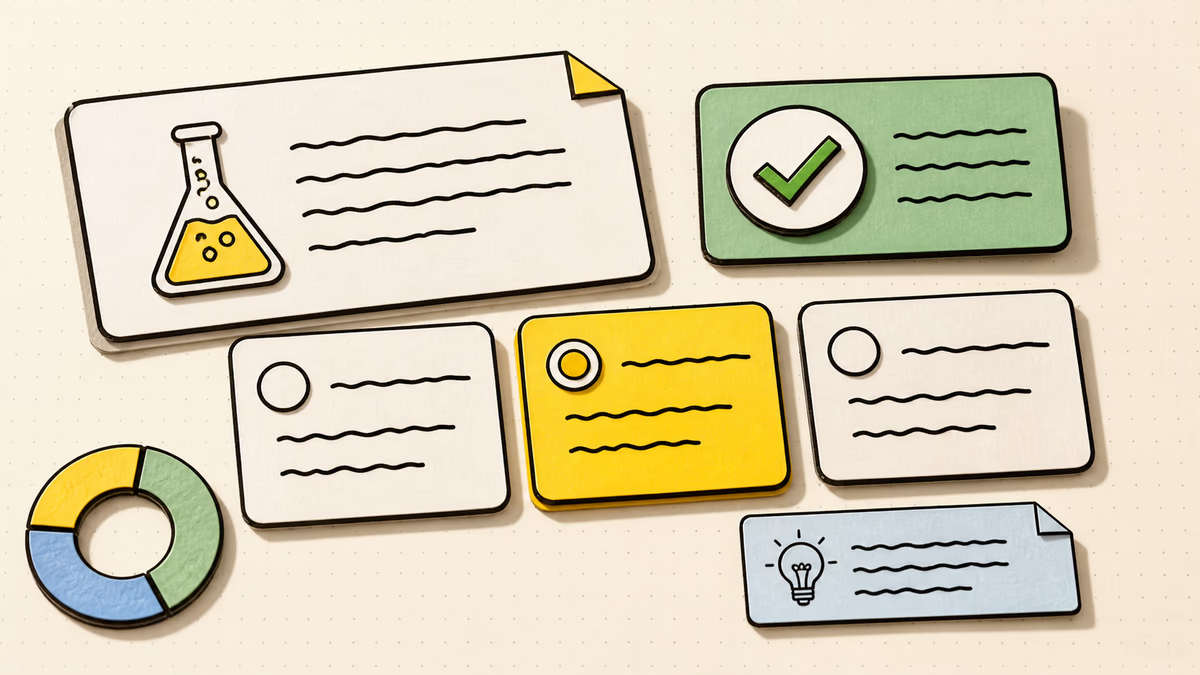
Multiple-choice and true-or-false items are scored automatically. Written responses include a reference answer for self-checking. Explanations and reference answers help you identify what to revisit after submission.
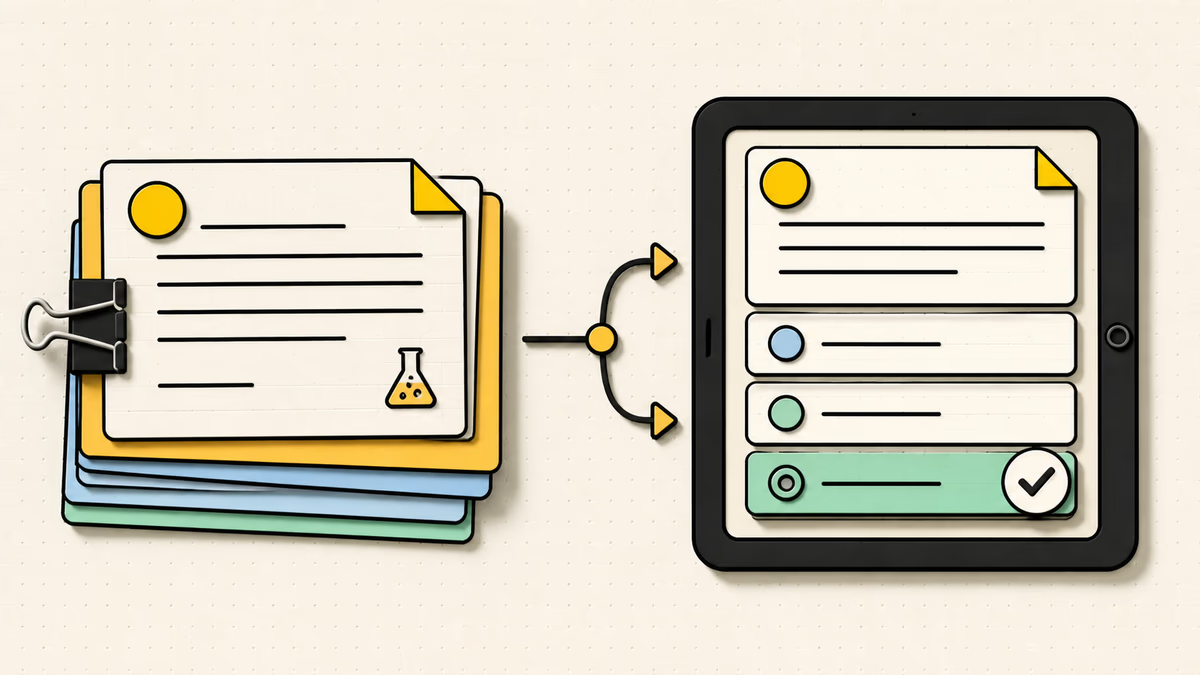
Use the AI Question Generator when you need a bank to copy or download. Use this AI Quiz Generator when learners should answer on the page, submit objective responses for a score, and compare written work with reference answers.
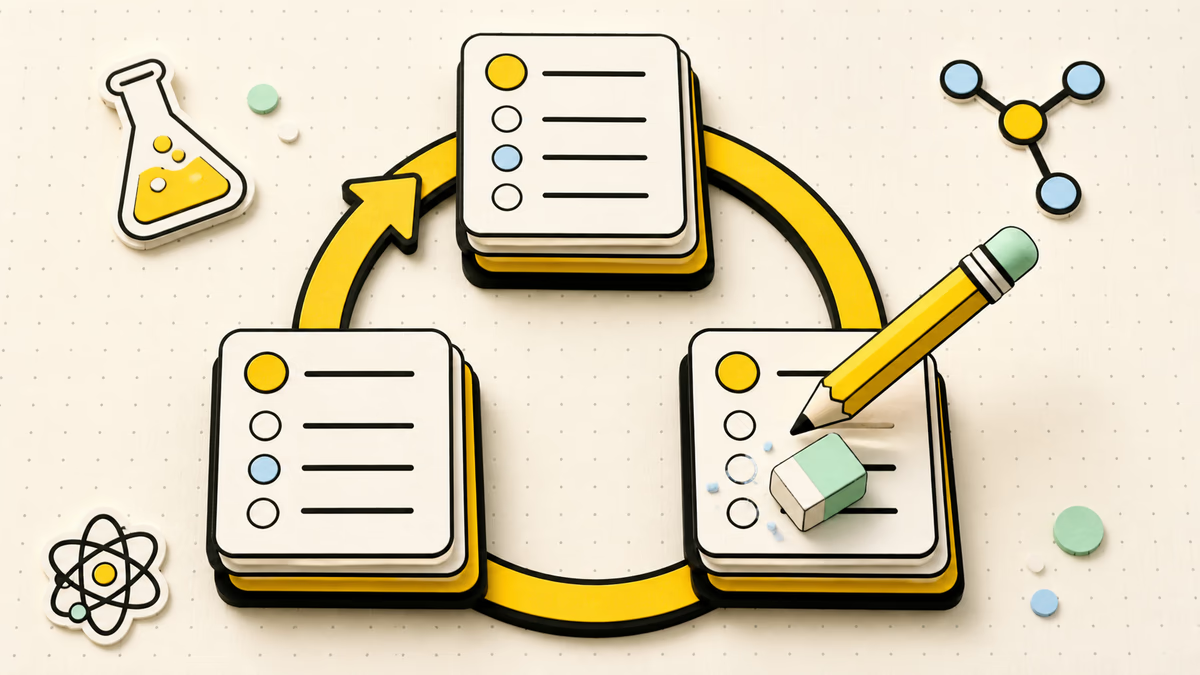
Submitting, reviewing, copying, downloading, and retaking an existing quiz do not use another credit. Regeneration is different: it requests a new provider-created quiz from the current inputs and settings, which should be reviewed as a new draft.
Make a quiz
Creating quizzes with AI can begin with your own notes. Use the source and settings you provide to build a focused practice set.
Enter a focus, paste your material, or extract selectable text from a supported PDF. Remove unrelated text and name the chapter, concept, or objective when the source covers several topics.
Choose the question count, difficulty, formats, and output language. Match the length and challenge to the time available for the practice session.
Complete the quiz, check the objective score, and read explanations or reference answers. Retake the same quiz locally or regenerate when you need a different set.
Use a topic, pasted notes or passages, and PDFs with selectable text. You can also combine a topic or focus with source material.
PDF text is extracted in your browser. Files can be up to 10 MB and 50 pages; scanned image-only pages are not supported because this tool does not perform OCR.
Multiple-choice and true-or-false items are graded automatically. Short-answer and open-ended responses show a reference answer for self-checking.
No. After generation, answering, scoring, reviewing, copying, downloading, and retaking do not start another generation or use another credit.
The shared guest trial includes up to 2 accepted generations across the five education tools. Signed-in generation and regeneration use 1 credit after provider acceptance; working with an existing quiz does not use another credit.
Yes. A topic can be used without pasted source text when you want a broader practice set. Add enough detail to identify the subject, level, and focus. For course-specific wording or facts, provide notes or a readable PDF and review the generated questions against that material before using the quiz.
Start with focused source material, choose formats that match the learning goal, and keep the question count realistic for the study session. After generation, check prompts, options, answers, and explanations for accuracy and ambiguity. Revise the source or settings and regenerate only when a different quiz is genuinely useful.
No. Use the generated quiz as a draft and practice resource. A teacher or subject-informed reviewer should verify facts, difficulty, accepted answers, and multiple-choice distractors before graded or high-stakes use. Written responses are designed for self-checking against a reference answer, not automatic grading of every possible valid response.

Bring a topic, notes, or a readable PDF, choose the quiz settings, and generate an interactive quiz you can answer and review on the page. Submit objective answers for a score, compare written responses with reference answers, and retake the existing quiz locally. Use the AI quiz generator as an AI quiz maker when you want creation, practice, and review in one workflow.
Make a quiz